
简介:
DamRsn NeuralNote v2.0.0 x64 WiN Mac [免费]
免费 | Win Mac Standalone VST3 AU | 39/60 MB
使用深度学习将音频转录为MIDI的音频插件。
NeuralNote是音频插件,它将最先进的音频到MIDI转录到您最喜爱的数字音频工作站。
v2的新功能
一种新的,功能更强大的转录模型。v2用来自kyukai和mirero (论文,博客文章,检查点) 的MuScriptor替换了Spotify的基本音调。这是一个103米到1.4B参数的变压器,相比之下,基本间距小于17K。
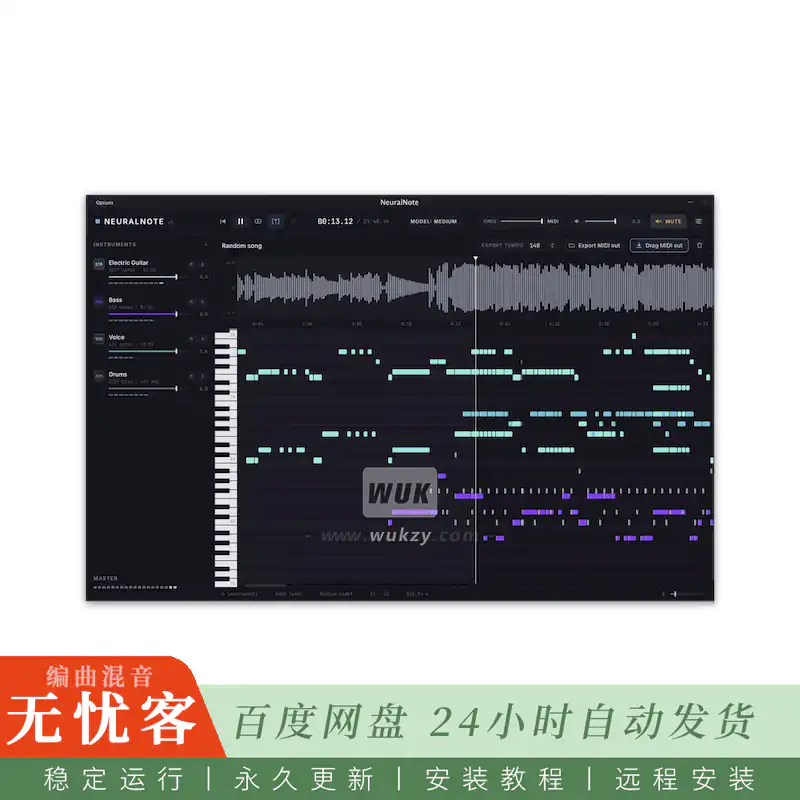
多乐器转录。转录完整的混音,而不是一次只使用一种乐器,并按乐器对音符进行分组。
内置多乐器合成器。听每个转录的乐器,每个乐器增益,静音和独奏。
全新的现代化用户界面。
仍然是完全本地的。转录在您的机器,GPU或CPU上运行,您的音频永远不会离开它。NeuralNote仅在线下载模型并检查更新。
安装
从发布页面下载适用于您平台的最新版本。
macOS (Apple Silicon): NeuralNote_Installer_Mac_arm64.pkg安装独立应用程序、VST3和AU。它是签名和公证的。英特尔mac的安装程序将在稍后发布。同时,您可以从源代码构建。
Windows (x64): NeuralNote_Installer_Windows_x64.exe安装独立应用程序和vst3。它没有代码签名,所以Windows可能会在第一次运行它之前警告你。
Linux: 即将推出预构建的二进制文件。同时,您可以从源代码构建。
不包括转录模型。第一次打开它时,请从NeuralNote中下载它 (请参阅模型和性能)。
用法
NeuralNote是一个简单的AudioFX插件 (VST®3/AU/独立应用程序),您将其应用于要转录的曲目。
收集一些音频:
点击录制。这既适用于现场录制,也适用于播放DAW中的曲目。
或删除插件上的音频文件 (.wav,。音频文件,.flac,.mp3和.ogg(vorbis)受支持)。
在左侧面板中选择要转录的仪器,或选择自动让模型检测它们。
当模型被赋予正确的一组工具时,转录往往会更好。
单击转录。转录在后台运行,MIDI在解码时填充到钢琴卷帘中。运行时会显示进度指示器和取消按钮。
单击 “播放” 以收听结果,而无需等待转录完成。到目前为止,只有解码的部分播放。
调整源音频和合成转录之间的混合。
调整每个仪器的水平。
当您对结果感到满意时,请将MIDI从插件拖放到MIDI轨道上,或将MIDI文件保存到计算机。
型号和性能
MuScriptor有三种尺寸,小型,中型和大型,以速度换取质量。NeuralNote将它们作为GGUF文件从DamRsn/muscriptor-gguf上的拥抱脸下载。如果未安装任何型号,则可以下载所有三种尺寸。顶部栏中的 “模型” 按钮可让您在已安装的模型之间切换,下载其他尺寸的模型,并打开存储它们的文件夹。
操作系统型号文件夹
macOS ~/图书馆/NeuralNote/模型
Windows % APPDATA % \ NeuralNote \ models
Linux ~/.config/NeuralNote/models
小型下载约为210 MB,中型下载约为620 MB,大型下载约为2.7 GB。
您也可以手动将模型文件放在该文件夹中。使用来自HF repo的v1/的文件,不变并使用其原始名称 (例如muscriptor-medium-f16.gguf)。NeuralNote只选择名称和大小与其下载的文件相匹配的文件。
您可以通过从此文件夹中删除模型来移除模型,并随时重新下载。
硬件。转录速度主要取决于模型大小和您的硬件。GPU在可用时通过macOS上的Metal和Windows和Linux上的Vulkan使用。对于中型和大型模型,强烈建议使用GPU。“设置”> “计算设备” 选择设备: “自动” (默认设置,用于命名它选择的设备) 、特定GPU或CPU。该选择适用于下一个转录,并且在重新启动NeuralNote (或您的DAW) 后列出以后添加或删除的gpu。到目前为止,只有少数gpu经过测试。如果转录失败,给出错误的结果或在您的机器上意外缓慢,请在这里或muscriptor.cpp中打开一个问题,如果问题出在引擎本身。请包括您的操作系统,GPU和模型大小。
在Apple M1 Pro上测量的近似实时因子 (大于1倍表示比实时快):
尺寸GPU (金属) CPU
小 ~ 3.5 × ~ 2 ×
中 ~ 1.5 × ~ 0.7 ×
不推荐大 ~ 0.5 ×
转录模型包含在peeplink中,您可以从peeplink下载它们,也可以在第一次打开它时从NeuralNote中下载它们。
放入模型:
macOS ~/Library/NeuralNote/models
Windows %APPDATA%\NeuralNote\models
Linux ~/.config/NeuralNote/models
简介:
DamRsn NeuralNote v2.0.0 x64 WiN Mac [FREE]
FREE | Win Mac Standalone VST3 AU | 39/60 MB
Audio Plugin for Audio to MIDI transcription using deep learning.
NeuralNote is the audio plugin that brings state-of-the-art audio-to-MIDI transcription into your favorite Digital Audio Workstation.
What’s new in v2
A new, much more capable transcription model. v2 replaces Spotify’s Basic Pitch with MuScriptor, from Kyutai and Mirelo (paper, blog post, checkpoints). It is a transformer with 103M to 1.4B parameters, compared with fewer than 17K for Basic Pitch.
Multi-instrument transcription. Transcribe full mixes, not just one instrument at a time, with notes grouped by instrument.
A built-in multi-instrument synth. Listen to every transcribed instrument, with per-instrument gain, mute and solo.
A new, modern UI.
Still fully local. Transcription runs on your machine, on the GPU or the CPU, and your audio never leaves it. NeuralNote only goes online to download models and to check for updates.
Install
Download the latest release for your platform from the releases page.
macOS (Apple Silicon): NeuralNote_Installer_Mac_arm64.pkg installs the Standalone app, VST3 and AU. It is signed and notarized. An installer for Intel Macs will come later. In the meantime, you can build from source.
Windows (x64): NeuralNote_Installer_Windows_x64.exe installs the Standalone app and VST3. It is not code signed, so Windows may warn you before running it for the first time.
Linux: prebuilt binaries are coming soon. In the meantime, you can build from source.
The transcription model is not included. Download it from within NeuralNote the first time you open it (see Models and performance).
Usage
NeuralNote is a simple AudioFX plugin (VST®3/AU/Standalone app) that you apply to the track you want to transcribe.
Gather some audio:
Click record. This works both when recording live and when playing the track in your DAW.
Or drop an audio file on the plugin (.wav, .aiff, .flac, .mp3 and .ogg (vorbis) are supported).
Select the instruments to transcribe in the left panel, or select Automatic to let the model detect them.
Transcriptions tend to be better when the model is given the correct set of instruments.
Click Transcribe. The transcription runs in the background, and the MIDI fills into the piano roll as it is decoded. A progress indicator and a cancel button are shown while it runs.
Click play to listen to the result without waiting for the transcription to finish. Only the part decoded so far plays.
Adjust the mix between the source audio and the synthesized transcription.
Adjust the level of each instrument.
When you’re happy with the result, drag and drop the MIDI from the plugin onto a MIDI track, or save the MIDI file to your computer.
Models and performance
MuScriptor comes in three sizes, small, medium and large, which trade speed for quality. NeuralNote downloads them as GGUF files from DamRsn/muscriptor-gguf on Hugging Face. When no model is installed, all three sizes are available to download. The Model button in the top bar lets you switch between installed models, download other sizes, and open the folder where they are stored.
OS Models folder
macOS ~/Library/NeuralNote/models
Windows %APPDATA%\NeuralNote\models
Linux ~/.config/NeuralNote/models
The downloads are about 210 MB for small, 620 MB for medium and 2.7 GB for large.
You can also put a model file in that folder by hand. Use a file from v1/ of the HF repo, unchanged and with its original name (e.g. muscriptor-medium-f16.gguf). NeuralNote only picks up files whose name and size match the ones it downloads.
You can remove a model by deleting it from this folder, and re-download it at any time.
Hardware. Transcription speed depends mostly on the model size and on your hardware. The GPU is used when available, through Metal on macOS and Vulkan on Windows and Linux. A GPU is strongly recommended for the medium and large models. Settings > Compute device picks the device: Auto (the default, which names the device it chose), a specific GPU, or the CPU. The choice applies from the next transcription, and GPUs added or removed later are listed after restarting NeuralNote (or your DAW). Only a few GPUs have been tested so far. If transcription fails, gives wrong results or is unexpectedly slow on your machine, please open an issue, either here or in muscriptor.cpp if the problem is in the engine itself. Please include your OS, GPU and model size.
Approximate real-time factors measured on an Apple M1 Pro (above 1× means faster than real time):
Size GPU (Metal) CPU
small ~3.5× ~2×
medium ~1.5× ~0.7×
large ~0.5× not recommended
The transcription models are included in the peeplink, you can download them from peeplink or Download them from within NeuralNote the first time you open it.
put the models in:
macOS ~/Library/NeuralNote/models
Windows %APPDATA%\NeuralNote\models
Linux ~/.config/NeuralNote/models




评论0