
简介:
极性音乐极性-录音机v0.2.2独立VST3 CLAP AU LV2 WiN MAC LiNUX [免费]
免费 | WiN MAC LiNUX | 83.5mb
始终开启的音频录音机。
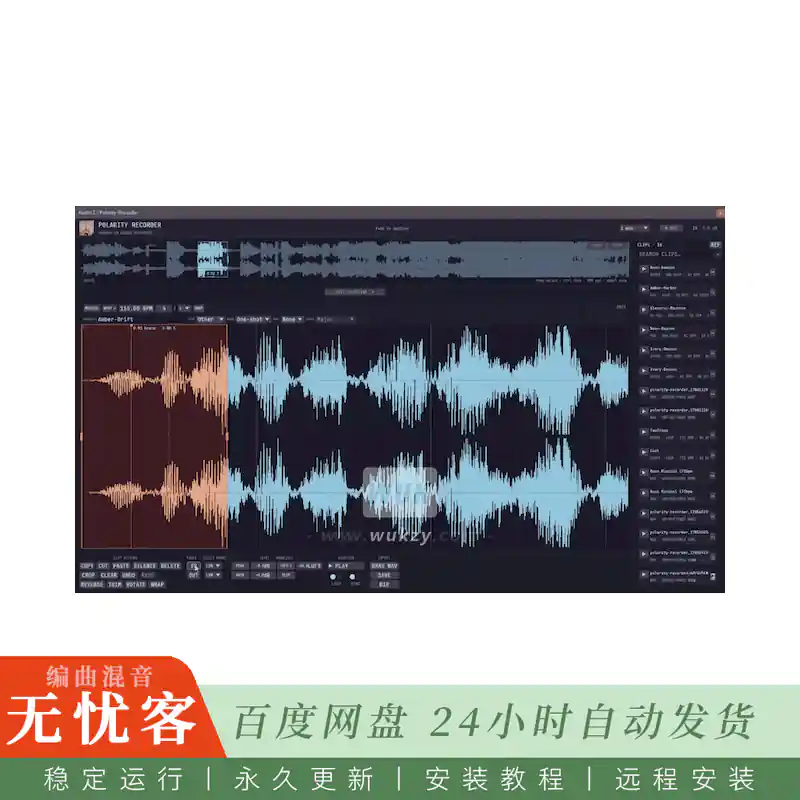
极性-录音机保留最近1到20分钟的音频。在独立应用程序中录制插件输入或捕获桌面音频,然后选择、编辑、收听和导出WAV文件。
功能
连续历史
1 / 2 / 5/10/20分钟
极性-记录器将传入的音频写入环形缓冲区。选择1到20分钟的历史长度。使用记录保持停止对缓冲区的更改。
桌面音频捕获
Windows、macOS和Linux上的独立
直接在独立应用程序中记录完整的系统输出,或切换到麦克风或音频接口。桌面捕获使记录器自己的输出静音以防止反馈。
历史视图保持
检查而不失去你的地方
将鼠标悬停在 “源” 窗格上以保持其显示的视口,同时继续录制。离开窗格以平滑地返回到实时历史记录。
频率颜色
低频、中频和高频
启用颜色以将低音调为红色,中频蓝绿色和高频淡蓝色。默认情况下它是关闭的,所以时间线标记保持突出。
宿主标记
交通、酒吧与节拍
历史记录显示样本对齐的播放开始、小节开始和节拍标记。选择边缘更喜欢条形和节拍边界,并且校正了接近精确的条形范围以防止循环漂移。按住Ctrl键自由移动。
音乐编辑网格
主机速度、仪表和捕捉
预览和编辑器在缩放允许的情况下显示条形、四分音符、八分音符和十六分音符。跟随主机或手动设置BPM和仪表。切换到基于秒的网格的时间。
两阶段编辑器
历史记录、预览和拥有的编辑
在当前历史记录中选择音频。下面的波形显示预览。在使用破坏性编辑命令之前,将所选内容复制到拥有的编辑器片段。
拖动并保存为WAV
导出选定的音频
在Windows和macOS上,将历史记录或编辑器选择拖到兼容的DAW、插件或文件管理器中。在所有平台上,使用 “保存” 导出当前选择。
结构化剪辑名称
项目、类型、形式、速度和键
在编辑器中设置剪辑元数据。保存和拖动WAV使用它来创建可读的文件名与项目,样品类型,形式,BPM,关键,规模,并采取。
片段浏览器
搜索和管理导出的文件
跨标题和结构化元数据搜索。直接预览或拖动剪辑,然后使用其菜单加载、重命名或删除WAV文件。
音频编辑
剪贴板、计时、淡入和级别
复制、剪切、粘贴、静音、删除、裁剪、反转、修剪、旋转或环绕范围。添加淡入淡出,调整增益,归一化到峰值或集成的LUFS,并可选择硬裁剪结果。
撤销和重做
浏览编辑历史
每个破坏性的音频编辑是不可撤销的控制或标准键盘快捷键。导出的文件和仅剪贴板操作保留在编辑历史记录之外。
聆听与循环
从选定的标记试听
通过单击放置开始标记,然后使用可选循环播放下部剪辑。当主机开始播放时,同步从相同的标记开始。
WAV导入
加载外部WAV文件
将单声道或立体声WAV文件拖放到编辑器上。编辑器将音频加载到内存中并保留源路径。保存文件仅在确认后替换源。
音频直通
录制期间无音频更改
当audition关闭时,插件将输入发送到输出,而不进行更改。它支持单声道和立体声总线。
实时安全
音频线程的安全运行
音频线程不分配内存、使用锁、写日志或访问文件。其他任务在后台任务通道上运行。
简介:
Polarity Music Polarity-Recorder v0.2.2 STANDALONE VST3 CLAP AU LV2 WiN MAC LiNUX [FREE]
FREE | WiN MAC LiNUX | 83.5 MB
Always-On Audio Recorder.
Polarity-Recorder keeps the most recent 1 to 20 minutes of audio. Record a plug-in input or capture desktop audio in the standalone app, then select, edit, listen to, and export a WAV file.
Features
Continuous History
1 / 2 / 5 / 10 / 20 minutes
Polarity-Recorder writes incoming audio to a ring buffer. Select a history length from 1 to 20 minutes. Use record hold to stop changes to the buffer.
Desktop Audio Capture
Standalone on Windows, macOS, and Linux
Record the complete system output directly in the standalone app, or switch to a microphone or audio interface. Desktop capture mutes the recorder’s own output to prevent feedback.
History View Hold
Inspect without losing your place
Hover over the source pane to hold its displayed viewport while recording continues. Leave the pane to return smoothly to the live history.
Frequency Colors
Low, mid, and high frequencies
Enable COLOR to tint bass red, mid frequencies teal, and high frequencies pale blue. It is off by default so timeline markers stay prominent.
Host Markers
Transport, bars, and beats
The history shows sample-aligned play-start, bar-start, and beat markers. Selection edges prefer bar and beat boundaries, and near-exact bar ranges are corrected to prevent loop drift. Hold Ctrl to move freely.
Musical Editor Grid
Host tempo, meter, and snapping
The preview and editor show bars, quarter notes, eighth notes, and sixteenth notes as zoom allows. Follow the host or set BPM and meter manually. Switch to TIME for a seconds-based grid.
Two-Stage Editor
History, preview, and owned edit
Select audio in the current history. The lower waveform shows a preview. Copy the selection to an owned editor clip before you use destructive edit commands.
Drag and Save WAV
Export the selected audio
On Windows and macOS, drag a history or editor selection to a compatible DAW, plug-in, or file manager. On all platforms, use SAVE to export the current selection.
Structured Clip Names
Project, type, form, tempo, and key
Set clip metadata in the editor. SAVE and DRAG WAV use it to create readable filenames with the project, sample type, form, BPM, key, scale, and take.
Clip Browser
Search and manage exported files
Search across titles and structured metadata. Preview or drag a clip directly, then use its menu to load, rename, or delete the WAV file.
Audio Editing
Clipboard, timing, fades, and level
Copy, cut, paste, silence, delete, crop, reverse, trim, rotate, or wrap a range. Add fades, adjust gain, normalize to peak or integrated LUFS, and optionally hard-clip the result.
Undo and Redo
Move through the edit history
Every destructive audio edit is undoable with the controls or standard keyboard shortcuts. Exported files and clipboard-only actions stay outside the edit history.
Listen and Loop
Audition from a chosen marker
Place the start marker with a click, then play the lower clip with optional looping. SYNC starts from the same marker when the host begins playback.
WAV Import
Load an external WAV file
Drop a mono or stereo WAV file on the editor. The editor loads the audio into memory and keeps the source path. SAVE FILE replaces the source only after confirmation.
Audio Passthrough
No audio change during recording
When audition is off, the plug-in sends the input to the output without changes. It supports mono and stereo buses.
Real-Time Safety
Safe audio-thread operation
The audio thread does not allocate memory, use locks, write logs, or access files. Other tasks run on a background task lane.
评论0