
简介:
用于Ableton Live的Elisa Hom Varispeed 2.0
Wukzy.com独享 | 预设 | 402 KB
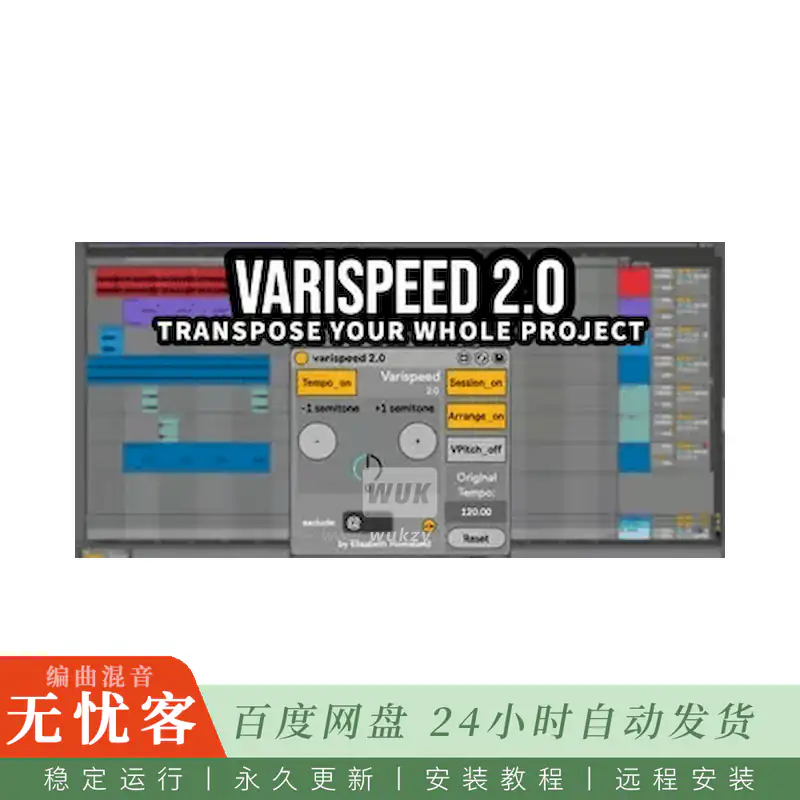
Varispeed是一种MaxforLive设备,可让您像模拟磁带机一样使用Ableton Live。
您可以在两个方向上将整首歌曲 (音频剪辑和midi轨道) 转置到-24/24个半音,同时准确地改变速度。
这样,您就可以像过去一样以其他速度和音调记录零件。
或者你可以用不同的键来查看你的歌,
这也是很好的练习目的。
功能:
-把Varispeed的一个实例在你的主人 (或任何轨道基本上) 和转置你的整首歌。
-转置音频和Midi剪辑。
-在两个方向上向上或向下转置到24个半音。-在会话和安排模式下工作。
-通过在其名称中添加关键字或符号来排除您喜欢的任何轨道 (默认符号为 @)
您可以选择Varispeed应该注意的单词或符号。
-转置Midi信息后,它的左剪辑。用于单独的鼓架垫或音序器。(有关详细信息,请参阅VPitch部分)
-您可以关闭设备中的每个处理电路,以提高效率,或者用于不同的使用情况。
(如果你知道你不使用会话视图,或排列视图,或单独的Vpitch设备,只需关闭这个电路,你可以禁用设备的节奏变化电路。)
警告:
-这些是最大的现场设备,所以你需要生活套件,或生活标准与MaxForLive
-仅适用于Live 11。
-不要与冻结的轨道工作。
安装:
剧透
您可以将这些设备放入您的用户库,基本上在任何地方。
用户库的默认位置:
首次安装Live时,将在此位置创建用户库:
Windows: \ 用户 \ [用户名] \ 文档 \ Ableton \ 用户库Mac: Macintosh HD/用户/[用户名]/音乐/Ableton/用户库
请注意,Live必须分析您的用户库后,你把你的设备在那里…可能需要一段时间。
目前,您可以从用户库中将这些设备拖放到您的轨道上。直到Live分析您的文件夹。
^
____.-=== /// \\\ ===-.____
此版本已独家提供t o Wukzy.com
希望保持匿名的会员。
_==== —– ====_
*
简介:
Elisa Hom Varispeed 2.0 for Ableton Live
Wukzy.com Exclusive | Presets | 402 KB
Varispeed is a MaxforLive device that lets you use Ableton Live like an analog tape machine.
You can transpose the whole song (audio clips and midi tracks) in both directions up to -24/24 semitones while accurately changing the tempo too.
By that you gain the ability to record parts in other speed and pitch like back in the days.
Or you can check out your song in different keys,
and it’s also good for practicing purposes, too.
Features:
– Put one instance of Varispeed on your master (or to any track basically) and transpose your whole song.
– Transposes both Audio and Midi Clips.
– Transpose up or down up to 24 semitones in both directions. – Works in both Session, and arrangement mode.
– Exclude any track you like by adding a key word or symbol to its name ( the default symbol is @ )
you can choose what word or symbol Varispeed should look out for.
– Transpose Midi information after it’s left the clips. for individual drum rack pads, or sequencers. ( For detailed information see the VPitch section)
– You can turn off every processing circuit in the device for more efficiency, or for different usecases.
(If you know you don’t use the Session View, or Arrangement View, or the separate Vpitch device, simply turn off this circuit, and you can disable the tempo changing circuit of the device too.)
WARNING:
– These are max for live devices so you’re gonna need either Live suite, or live standard with MaxForLive
-Works with Live 11 only.
-Don’t work with freezed tracks.
Installation :
Spoiler
you can put these devices into your user library, basically anywhere.
Default location of the User Library:
When you install Live for the first time, the User Library is created at this location:
Windows: \Users\[username]\Documents\Ableton\User Library Mac: Macintosh HD/Users/[username]/Music/Ableton/User Library
Please note that Live has to analyse your user library after you put your devices in there… It could take a while.
For the time being, you can just drag and drop these devices on your track from your user library. until Live analyses your folders.
^
____.-===/// \\\===-.____
This release has been exclusively provided to Wukzy.com
by our member who wish to remain anonymous.
_====—–====_
*

评论0